
Stop Begging for Referrals. Do These 5 LinkedIn Hacks to Make HRs Text YOU!
Table of Contents
Introduction
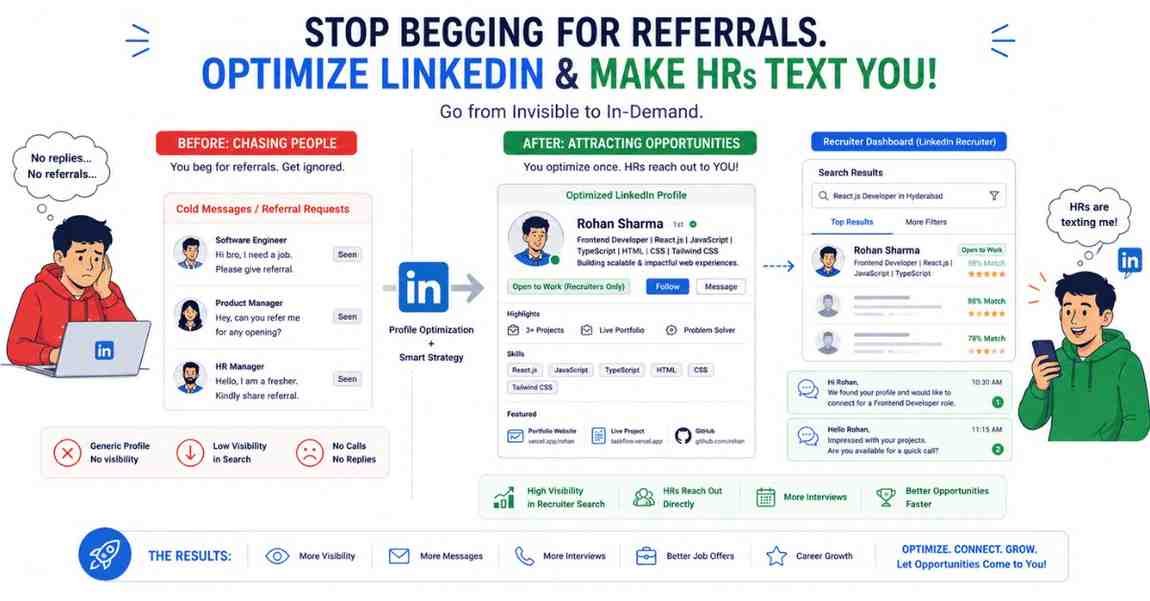
Let’s talk about your LinkedIn strategy. Right now, it probably looks something like this:
You create an account. You upload a picture from your college farewell. You search for software engineers working at Amazon, TCS, or Google. You hit “Connect,” and the second they accept, you send a message that reads:
“Hi bro. I am a fresher. I need a job. Please give referral. Here is my resume.”
And what happens next? You get left on “Read.” Or worse, you get blocked.
If this is how you are using LinkedIn, you are treating it like a dating app or a casual messaging board. But LinkedIn is not Facebook. LinkedIn is a highly sophisticated, multi-billion dollar B2B Search Engine.
Just like you go to Google to search for “best laptops under 50k,” HR managers go to LinkedIn to search for “React Developers in Hyderabad.” If your profile is not optimized for their specific search terms, you will never show up on their screens. You will remain invisible, forced to beg strangers for referrals.
But what if we flipped the script? What if, instead of you chasing HRs, they started sending you Direct Messages asking if you are available for an interview?
In this guide, I am going to show you how to hack the LinkedIn algorithm using 5 specific profile tweaks. We are going to turn your profile from a “Desperate Student” into an “In-Demand Professional.”
Hack 1: The Hidden "Open to Work" Setting (No Green Badges!)
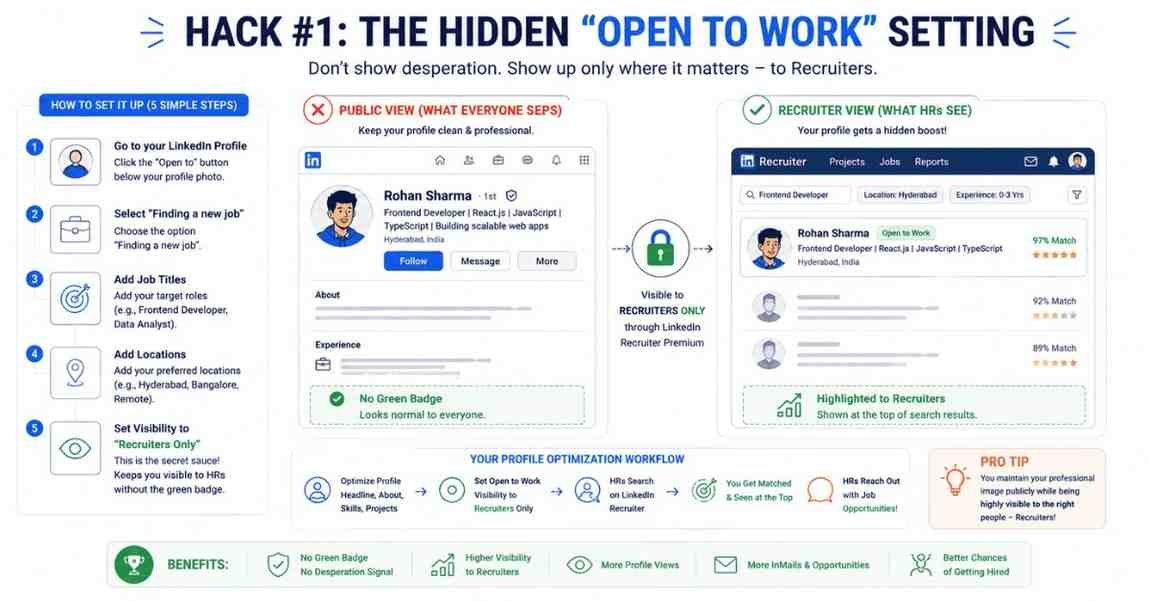
Whenever someone is looking for a job on LinkedIn, the first thing they do is turn on the #OpenToWork green photo frame.
I am going to give you some controversial advice: Take the green badge off.
In the recruitment world, there is a psychological bias. When you slap a massive green “Open to Work” banner on your face, it can sometimes signal desperation. It tells the world, “I don’t have anything right now, please take me.” While some recruiters don’t mind it, many top-tier companies actually prefer to hunt for “passive candidates” (people who look like high-value professionals, not desperate job seekers).
But wait, if you turn it off, how will HRs know you want a job?
Here is the insider secret: LinkedIn has a hidden Open to Work setting designed exclusively for people who have the paid LinkedIn Recruiter Premium software (which all HRs use).
How to set it up:
- Go to your LinkedIn Profile.
- Click the “Open To” button under your profile picture and select “Finding a new job.”
- Add your target job titles (e.g., Frontend Developer, Full Stack Developer, Junior Data Analyst).
- Add your target locations (e.g., Hyderabad, Bangalore, Remote).
- CRITICAL STEP: Scroll down to the “Visibility” section. Do NOT select “All LinkedIn Members” (this adds the green badge). Instead, select “Recruiters Only.”
When you select “Recruiters Only,” your profile looks completely normal to the public. But when an HR manager logs into their $10,000/year LinkedIn Recruiter dashboard, your profile gets a massive algorithmic boost and is highlighted to them as available for hire.
You maintain your professional dignity publicly, while secretly waving a flag directly at the people who can hire you.
Hack 2: Your Headline is a Search Engine Tag
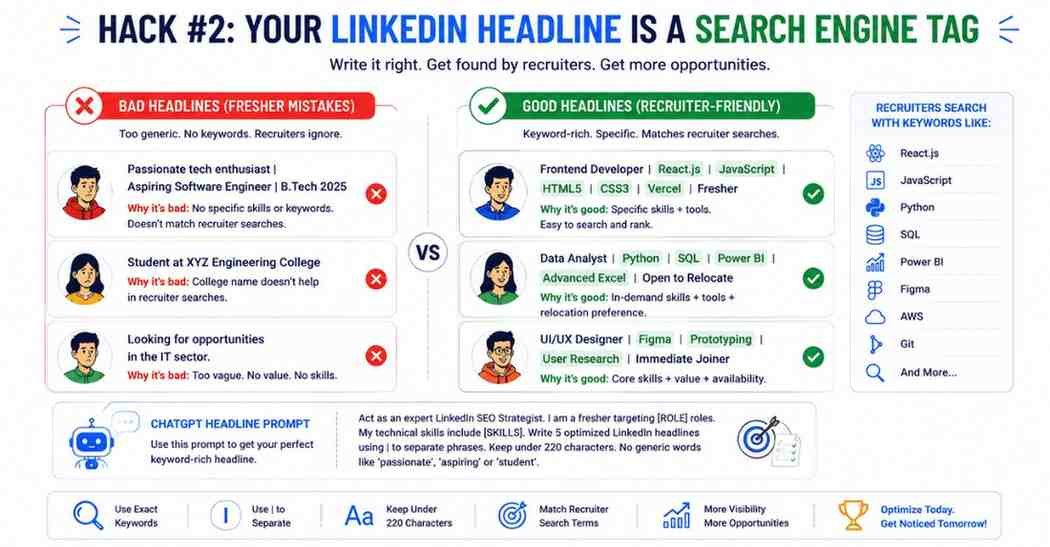
When a recruiter searches for a candidate, they only see three things in the initial list: Your Photo, Your Name, and Your Headline.
If your headline says, “Student at XYZ Engineering College” or “B.Tech CSE Passout 2025,” you have already lost the game.
Why? Because HR managers don’t type “XYZ Engineering College” into their search bar. They type skills. Your headline must be stuffed with the exact keywords that match the job you want. It should act as a billboard for your technical stack.
The Fresher Mistake:
- ❌ Passionate tech enthusiast | Aspiring Software Engineer | B.Tech 2025
- ❌ Looking for opportunities in the IT sector.
The Algorithm-Friendly Fix:
Use the Role | Skill 1 | Skill 2 | Unique Value format. Separate your keywords with the pipe symbol | to make it visually clean.
- ✅ Frontend Developer | React.js | JavaScript | HTML & CSS | Vercel | Fresher
- ✅ Data Analyst | Python | SQL | PowerBI Dashboarding | Open to Relocate
- ✅ UI/UX Designer | Figma | Prototyping | Human-Computer Interaction | Immediate Joiner
The ChatGPT Headline Prompt
Don’t guess what your headline should be. Open ChatGPT and use this exact prompt:
“Act as an expert LinkedIn SEO Strategist. I am a fresher targeting [Insert Role, e.g., Full Stack Developer] roles. My technical skills include [Insert 4-5 skills, e.g., MERN stack, JavaScript, REST APIs, Git]. Write 5 optimized, keyword-dense LinkedIn headlines for me. Use the pipe symbol (|) to separate phrases. Do not use generic words like ‘passionate,’ ‘aspiring,’ or ‘student.’ Keep them under 220 characters.”
Choose the one that sounds the most professional and update your profile right now.
Hack 3: The "About" Section (The Hook-Body-CTA Framework)
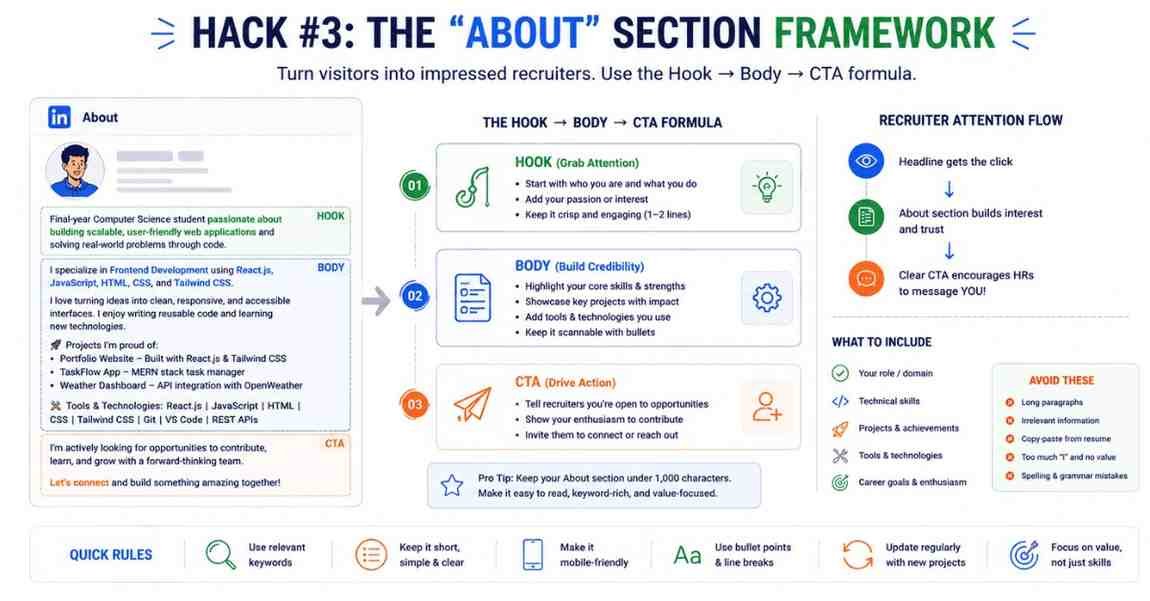
If the Headline gets the HR to click your profile, the About Section gets them to send you a message.
Most freshers leave their About section blank, or they write a generic paragraph they copied from their resume objective. “I am a dedicated individual seeking to work in a dynamic environment…” Boring. The HR will stop reading after three seconds.
You need to treat your About section like a sales pitch. You are the product, and the HR is the buyer. To do this, we use the Hook-Body-CTA (Call to Action) framework.
- The Hook: A strong opening statement that tells them exactly who you are and what you do.
- The Body: A bulleted list of your hard skills, tools, and the projects you have built. (Remember, LinkedIn’s search algorithm scans your About section for keywords).
- The CTA: A direct invitation for them to contact you, including your email address.
The ChatGPT “About Section” Mega-Prompt
Writing this manually is tough. Let’s use AI to generate a masterpiece. Copy and paste this prompt into ChatGPT:
“Act as an expert Career Coach and LinkedIn Copywriter. Write a highly engaging, ATS-optimized LinkedIn ‘About’ section for a fresher. My target role is [Insert Role]. My technical skills are [Insert Skills]. My best project is [Insert Project Name and 1 sentence on what it does].
Use the following structure:
- Hook: 2 short sentences introducing myself as a capable developer/analyst ready to contribute.
- Body: A bulleted list of my Technical Skills (Frontend, Backend, Tools/Databases).
- Proof of Work: A brief mention of my top project with a call to check out my Featured section.
- CTA: A closing sentence stating I am open to entry-level opportunities, followed by my email address [Insert Email].
Tone: Professional, confident, and direct. Do not use corporate clichés. No emojis except for basic bullet points.”
When ChatGPT gives you the result, read through it, ensure it sounds like you, and paste it into your profile. By including your email at the bottom (the CTA), you remove all friction. The HR doesn’t even have to send a connection request; they can just email you directly.
Hack 4: The "Featured" Section (Your Proof of Work)
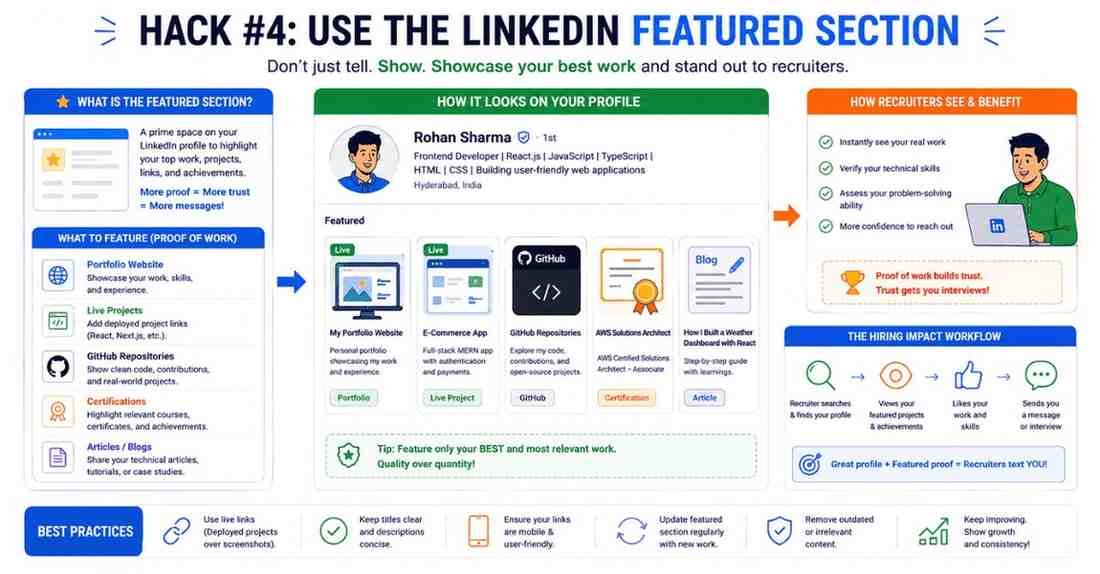
In 2026, degrees are becoming less important, and Proof of Work is becoming the ultimate currency.
When a recruiter lands on your profile, they don’t want to read a list of things you claim you can do. They want to see what you have built. This is where the LinkedIn Featured section becomes your secret weapon.
The Featured section sits right beneath your About section. It allows you to pin links, posts, and media so they are front-and-center.
What should a fresher put in the Featured Section?
- Your Portfolio Link: If you have a personal website hosted on Vercel, Netlify, or GitHub Pages, pin it here.
- Live Project Links: Did you build an e-commerce clone? A weather app? A PowerBI dashboard? Pin the live links. Do not pin the code repository directly unless it has a great ReadMe file. HRs want to click and see a working product, not read lines of code.
- Certifications: If you completed a highly practical certification (like the Frontlines Edutech Web Dev or Data courses), pin the certificate here to build instant credibility.
How to add it:
Go to your profile -> Add profile section -> Recommended -> Add featured -> Click the ‘+’ icon -> Add a Link.
When an HR sees a working, deployed project right on your LinkedIn profile, you instantly separate yourself from 95% of other freshers who only have text on their profiles.
Hack 5: Max Out Skills & Get Endorsements
The LinkedIn Recruiter tool relies heavily on the Skills section. When an HR searches for “Node.js,” the algorithm looks to see if “Node.js” is listed in your Skills section, and more importantly, how many people have endorsed you for it.
Step 1: Add 50 Skills
LinkedIn allows you to add up to 50 skills. Use all 50.
Don’t just add “Java.” Add “Core Java,” “Object-Oriented Programming (OOP),” “Spring Boot,” etc. The more variations of a keyword you have, the higher your chances of showing up in different search queries.
Step 2: Pin Your Top 3
LinkedIn allows you to pin your top 3 skills so they are visible without expanding the section. Make sure these 3 are the most critical hard skills for the job you want. (If you want to be a UI/UX designer, your top 3 should be Figma, Wireframing, and Prototyping not Communication, Teamwork, and Microsoft Word).
Step 3: The Endorsement Trade
The algorithm boosts profiles that have endorsements. As a fresher, how do you get them?
Reach out to your college friends, batchmates, or people you took courses with. Send them a message: “Hey! I just endorsed your profile for Python and SQL. Could you please return the favor and endorse my top 3 skills for Frontend Development?” It’s a win-win. You build their profile, they build yours, and the algorithm loves both of you.
Bonus Strategy: How to Actually Network (Stop the "Hi Bro")
Now that your profile is optimized, the HRs will slowly start finding you. But you should also be proactive. You should reach out to people, but you must do it the right way.
Never send a blank connection request. Never say “Hi bro, need a job.”
When you want to connect with a Senior Developer or an HR Manager at a company you like, always click “Add a Note” before sending the request.
The Golden Template for Connecting:
“Hi [Name], I am a recent graduate and I really admire the tech stack your team is building at [Company Name]. I have been building projects in [Insert your main skill, e.g., React.js] and would love to connect and follow your journey!”
Notice what we didn’t do? We didn’t ask for a job. We gave a compliment, stated our skills, and asked to connect. This has an 80% acceptance rate.
Once they accept, engage with their posts. Comment insightful things on their updates. After a week or two of building rapport, then you can politely ask if they would be willing to review your portfolio or let you know if an entry-level position opens up. That is how professional networking is done.
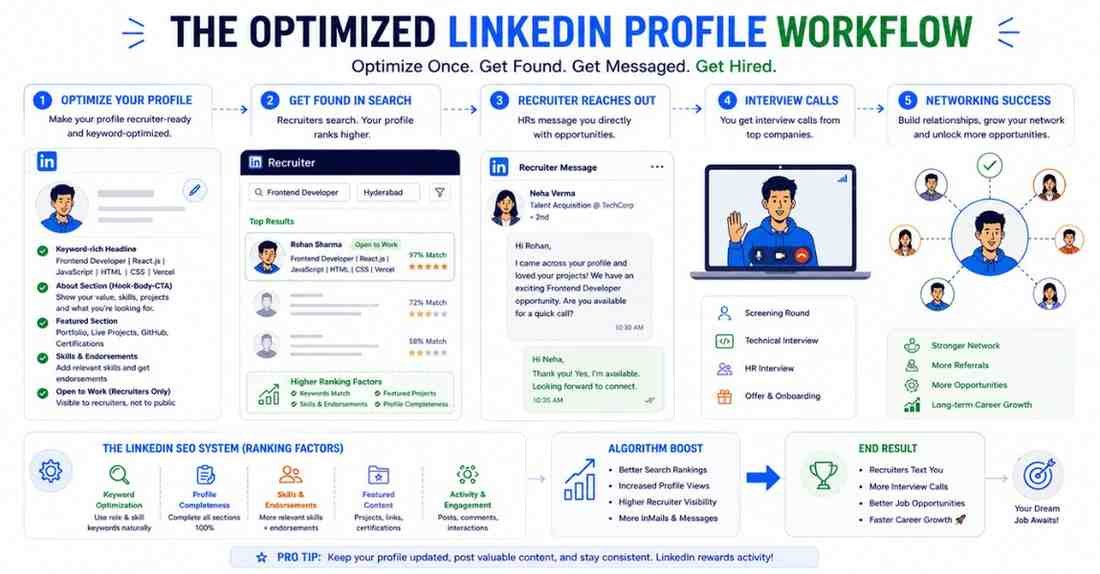
Conclusion: Your LinkedIn Action Plan
LinkedIn is not a place to hang out; it is a place to do business. Your business right now is getting hired.
Let’s review your action plan for today:
- Turn on “Open to Work” but set visibility to “Recruiters Only.”
- Rewrite your Headline using the ChatGPT prompt to make it a keyword-dense billboard.
- Generate a Hook-Body-CTA About section using ChatGPT and include your email.
- Pin your live project links to the Featured section.
- Add all 50 technical skills and trade endorsements with your friends.
By treating your profile like a Search Engine Optimization (SEO) project, you stop chasing recruiters and start making them chase you.
What’s Next in the “Job Ready 2026” Series?
We have mentioned “Live Project Links” and “Proof of Work” multiple times in this article. But what if you don’t know how to show your work? What if your projects are just sitting in a folder on your local computer?
If a recruiter can’t click a link and see your code or design working live, it doesn’t count.
In Episode 4: The Ultimate Portfolio & GitHub Guide, I am going to show you exactly how to take your college projects, host them live on the internet for free (using Vercel and GitHub), and prove to HRs that you are ready to be hired.
👉 Action Item for Today: Open ChatGPT, run the Headline and About Section prompts, and update your LinkedIn profile right now.
If you want to build high-level, industry-grade projects that you can proudly pin to your LinkedIn Featured section, check out the hands-on certification paths at Frontlines Edutech. We don’t just teach theory; we build real things. See you in the next post!